Older LinnStrument Not Working With Newer MacOS betas
Yesterday (2026-08-31) I woke up to my LinnStrument not working. The device itself seemed fine but there was no MIDI data received on the system.
I spent quite some time getting to the bottom of this and I want to share my findings and the fix here.
Current working theory is that it is a security fix gone awry in the latest macOS Sequoia beta, but I am worried that it will find its way into a stable macOS release.
The Cause
Older LinnStruments (probably everything shipped before January of 2022) reported a faulty USB manufacturer string. It includes some control characters that shouldn't be there.
Sadly, this is not part of the firmware that can be updated by a user, instead it is a separate firmware on the USB co-processor.
I have found and reported this issue in 2020. So far, it hadn't done any harm, but now with my current setup, it is the reason why the LinnStrument wasn't working anymore.
The Effect
When plugging in the LinnStrument, everything seems fine on the device but the DAW doesn't receive any notes. When opening Audio MIDI Setup, it shows the LinnStrument but the application then becomes unresponsive. There might also be some devices shown with empty names. Any configuration you did in Audio MIDI Setup (like enabling the IAC Driver) is lost every time you plug in the LinnStrument. This is because the file ~/Library/Audio/MIDI Configurations/Default.mcfg gets reset to an empty file (0 bytes) due to a crash in MIDIServer.
The Fix
We need to overwrite the manufacturer name in the config file mentioned above so that the control characters are no longer present.
The easiest way is to use my minimal config file. This will overwrite any settings you have done in Audio MIDI Setup. There are also some things in the file that are specific to my setup (which USB port it was last connected to, placement of the UI elements in Audio MIDI Setup), but I don't think that makes any real difference to you.
- Unplug your LinnStrument (ideally also any other MIDI devices).
- Download the minimal config file here. In Finder, use
Go->Go to Folder(cmd-shift-g) and enter~/Library/Audio/MIDI Configurations. - Copy the downloaded file into this folder, overwriting the existing one.
- Plug in your LinnStrument — it should now work again.
- Optionally open
Audio MIDI Setupand reconfigure anything that you had set up before.
If you do have a backup of the previous, non-empty Default.mcfg, you can remove the offending characters yourself. This will make it so that your previous configuration in Audio MIDI Setup survives.
- Unplug your LinnStrument (ideally also any other MIDI devices).
- Locate the old Default.mcfg file and open it in
TextEdit - Use cmd-f to search for
roger linn - You should find the entry for the manufacturer string:
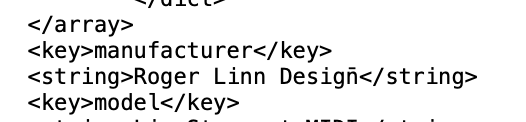
- You can see the last n character with this accent looking thing. We need to replace it with a regular
n. It can be kind of weird to edit those additional zero-width characters, so ideally just select the letternwith the accent thing and typenagain. Save the file. - Copy the fixed old Default.mcfg into
~/Library/Audio/MIDI Configurations, overwriting the existing file. - Plug in your LinnStrument — it should now work again.